UI 위젯 설계와 실시간 데이터 연동하기 | [언리얼 엔진 C++ (Unreal Engine C++)]
UMG (User Widget) 위젯 기초 디자인 이해하기
1️⃣ HUD (Heads-Up Display)란?
- HUD는 게임 내에서 플레이어에게 정보를 제공하기 위한 화면을 말합니다. 일반적으로 게임 중 화면의 일부에 배치되며, 플레이어가 현재 게임 상황을 이해하는 데 필요한 체력, 미니맵, 퀘스트 업데이트와 같은 데이터를 제공합니다.
- 언리얼 엔진에서는 다음과 같은 HUD 시스템이 있습니다.
- Canvas 기반 HUD:
- AHUD 클래스를 상속하여 구현
- 기본적인 2D 그리기 작업(텍스트, 이미지 등) 가능
- 레거시 방식으로 간주되며, 간단한 HUD에 적합
- UMG (Unreal Motion Graphics):
- 언리얼 엔진의 Widget Blueprint를 이용한 UI 시스템
- 더 직관적이고 강력한 HUD 디자인 가능
- 다양한 위젯(Text, Button, Image 등)을 사용하여 HUD를 제작
- Canvas 기반 HUD:
- 우리는 여기서 UMG 방식을 따르도록 합니다.
유저 인터페이스 및 HUD 관련 UE 공식 문서: https://dev.epicgames.com/documentation/unreal-engine/user-interfaces-and-huds-in-unreal-engine?lang=ko
User Interfaces and HUDs in Unreal Engine | Unreal Engine 5.7 Documentation | Epic Developer Community
Guides and information for artists and programmers creating user interfaces such as menus and HUDs in Unreal Engine
dev.epicgames.com
UMG UI 디자이너 퀵스타트 가이드 UE 공식 문서: https://dev.epicgames.com/documentation/unreal-engine/umg-ui-designer-quick-start-guide-in-unreal-engine?lang=ko
UMG UI Designer Quick Start Guide in Unreal Engine | Unreal Engine 5.7 Documentation | Epic Developer Community
Getting started with using Unreal Motion Graphics in Unreal Engine.
dev.epicgames.com
2️⃣ 위젯 블루프린트 (Widget Blueprint)란?
- Widget Blueprint란?
- 언리얼 엔진에서 UI (User Interface)를 시각적으로 설계할 수 있도록 제공되는 에디터용 블루프린트입니다.
- 개발자는 이 블루프린트 안에서 Text Block, Button, Image 등 다양한 UI 요소를 드래그 앤 드롭으로 간편하게 배치할 수 있습니다.
- 이렇게 만든 Widget Blueprint는 게임 화면에 표시되는 UI가 됩니다.
- Widget Blueprint 생성 경로
- Content Browser에서 Contents 하위에 UI 폴더를 만들고, 그 하위에 또 Widget 폴더를 만듭니다.
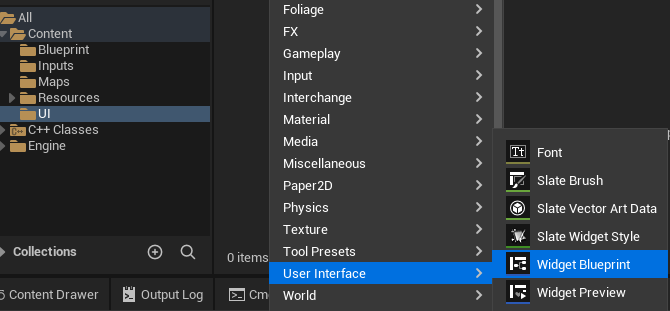
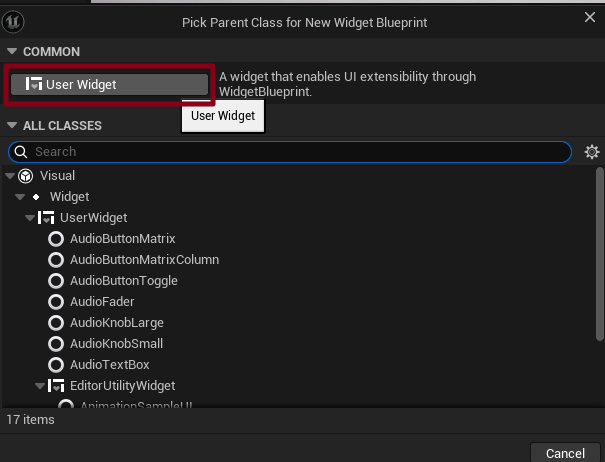
- Widget 폴더에서 우클릭하고 User Interface - Widget Blueprint를 선택하고 부모 클래스로 User Widget을 선택해 줍니다. 그리고 WBP_HUD 라는 이름으로 생성합니다.
- Widget Blueprint 열기
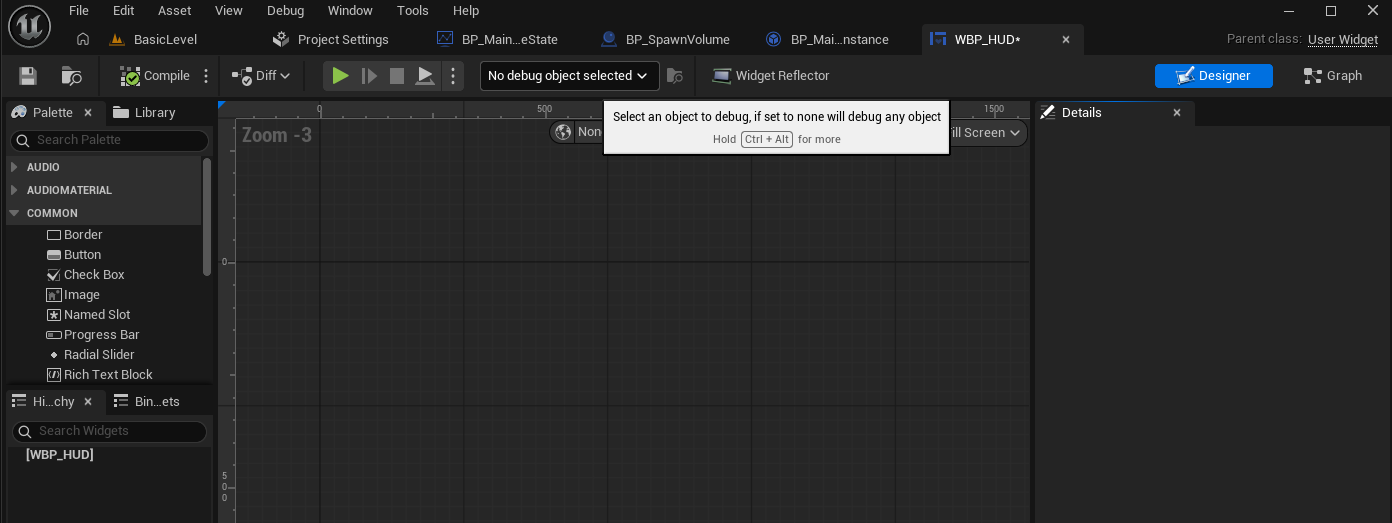
- 생성된 위젯을 더블 클릭하면, 오른쪽 상단에 Designer 탭과 Graph 탭이 있는 것을 확인할 수 있습니다.
- Designer 탭: UI를 배치하는 공간입니다.
- Graph 탭: 블루프린트 이벤트 그래프(로직)을 작성하는 공간입니다.
- 생성된 위젯을 더블 클릭하면, 오른쪽 상단에 Designer 탭과 Graph 탭이 있는 것을 확인할 수 있습니다.
3️⃣ UI 요소 (UI Elements)란?
- UI Elements (UI 요소)란?
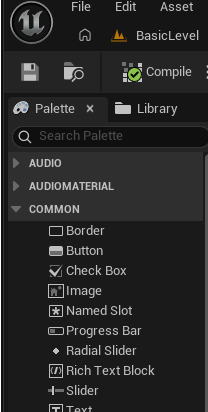
- 언리얼 엔진에서 제공하는 다양한 UI 구성 요소를 말합니다. 왼쪽 상단에 보면 Palette 탭이 있으며, 여기에는 다양한 UI 요소들을 제공합니다.
- 예를 들어, Text Block (텍스트 표시용), Button (버튼), Progress Bar (게이지 표시) 등이 있습니다.
- Text Block: 캐릭터 체력, Score(점수), Time(남은 시간) 등 텍스트를 보여줄 때
- Button: “Start Game”, “Quit Game” 등 클릭 이벤트가 필요한 메뉴 버튼
- Progress Bar: 체력 게이지나 로딩 게이지 등을 시각적으로 표시할 때
4️⃣ 점수, 시간, 레벨 표시를 위한 UI Widget 디자인하기
Widget Blueprint의 Designer 탭에서 배치
- 마우스로 드래그 앤 드롭하여 원하는 위치에 배치할 수 있습니다. Details 패널에서 해당 요소의 크기, 색상, 폰트, 정렬 방식 등을 원하는 대로 수정할 수 있습니다.
- 우선, Palette에서 Panel 중 Canvas Panel을 찾아서 클릭합니다. Canvas Panel은 모든 UI 요소를 포함할 수 있는 “큰 도화지” 같은 역할을 합니다. UI 요소들을 자유롭게 배치할 수 있는 가장 기본적인 레이아웃 패널이기도 합니다.
- Canvas Panel을 드래그 앤 드롭하여 Designer Tab에 끌어다 놓습니다. 그러면 왼쪽 아래 Hierarchy 탭을 보면 Canvas Panel이 가장 루트로 생성된 것을 확인할 수 있습니다.
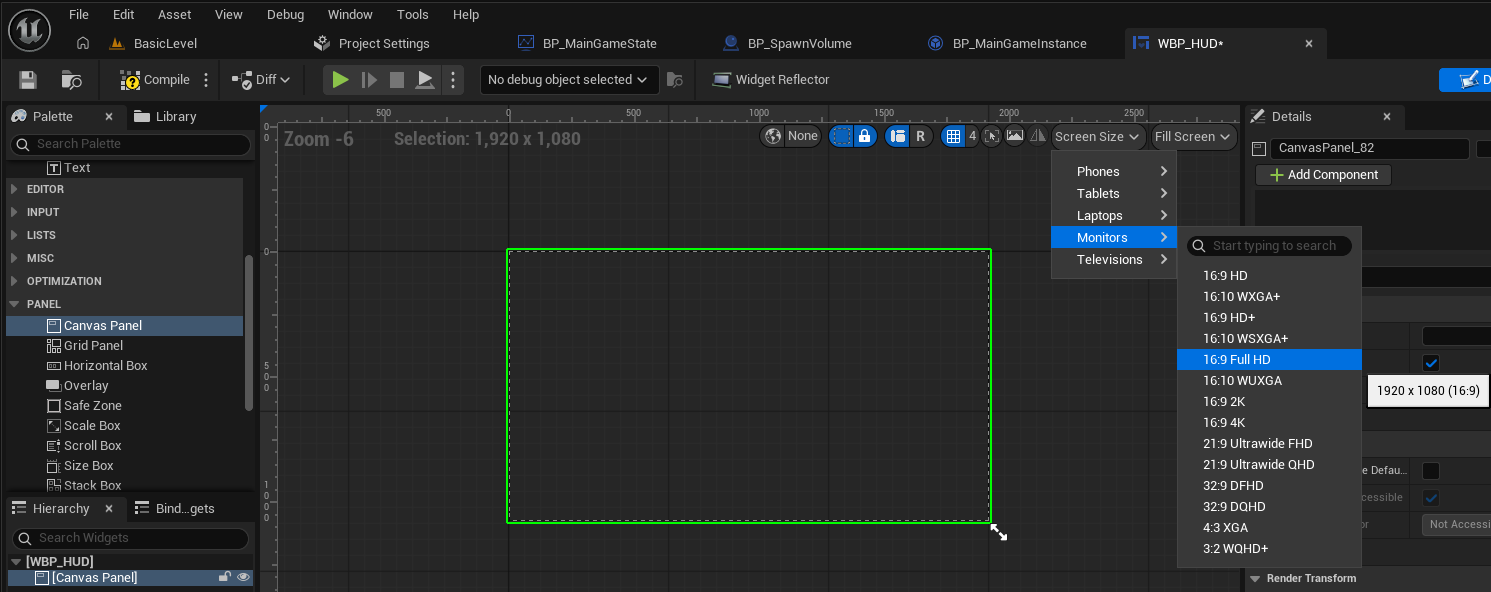
- 오른쪽 상단에 보면, Screen Size를 결정할 수 있는 부분이 있는데 여기서 가장 대중적인 화면 크기인 1920 x 1080 (16:9 Full HD) 사이즈로 설정하기 선택해줍니다.(구버전은 21.5-24" monitor 라고 나옵니다)
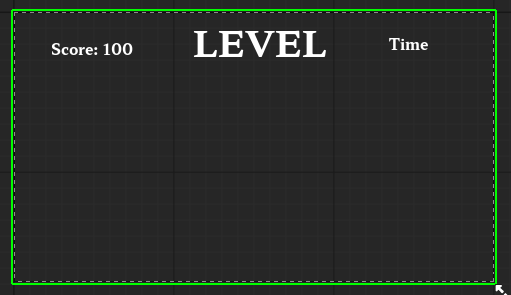
- 다음으로 Palette에서 Common 리스트 중에서 Text를 선택 → Canvas Panel 위로 드래그 앤 드롭합니다
- 원하는 Font 에셋 만들기
- 우리는 폰트 스타일을 적용하기 위해서는 콘텐츠 폴더에 Font를 import 해야합니다. 미리 .ttf나 .otf 확장자를 가진 폰트 파일을 다운로드 받습니다.
- Contents - UI - Fonts 폴더를 미리 만들어둡니다.
- 마우스 우클릭 → Import to ‘/Game/UI/Fonts’를 클릭하면 파일 선택 창에서 .ttf나 .otf 폰트 파일을 선택하면, 언리얼 엔진 내로 임포트가 진행됩니다.
- 임포트가 완료되면, 콘텐츠 브라우저에 새로운 폰트 에셋이 생깁니다.
- 이렇게 생성된 Font Asset을 Font Family를 지정할 때 이 에셋을 적용할 수 있습니다. 언리얼엔진에서는 기본적으로 Roboto 폰트 스타일만은 제공합니다.
- 이번 프로젝트에서는 무료폰트인 함렛을 사용했습니다. : https://github.com/hyper-type/hahmlet
GitHub - hyper-type/hahmlet: Hahmlet font by Minjoo Ham and Mark Frömberg aka Hypertype
Hahmlet font by Minjoo Ham and Mark Frömberg aka Hypertype - hyper-type/hahmlet
github.com
무료 폰트 모음 사이트 눈누에서 더 확인해 보실 수 있습니다: https://noonnu.cc/
눈누
상업적 이용 가능한 한글 폰트를 쉽게 찾아보세요.
noonnu.cc
HUD Widget을 생성해 화면에 표시하기
1️⃣ PlayerController에서 HUD 생성 로직 추가하기
- Widget (HUD나 UI 요소)은 보통 PlayerController에서 구현하게 됩니다. 그 이유는 Widget이 플레이어의 입력과 상호작용하며 화면에 표시되는 요소이기 때문입니다.
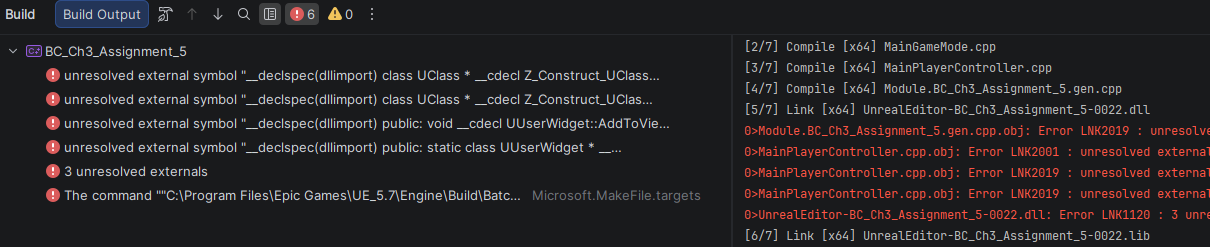
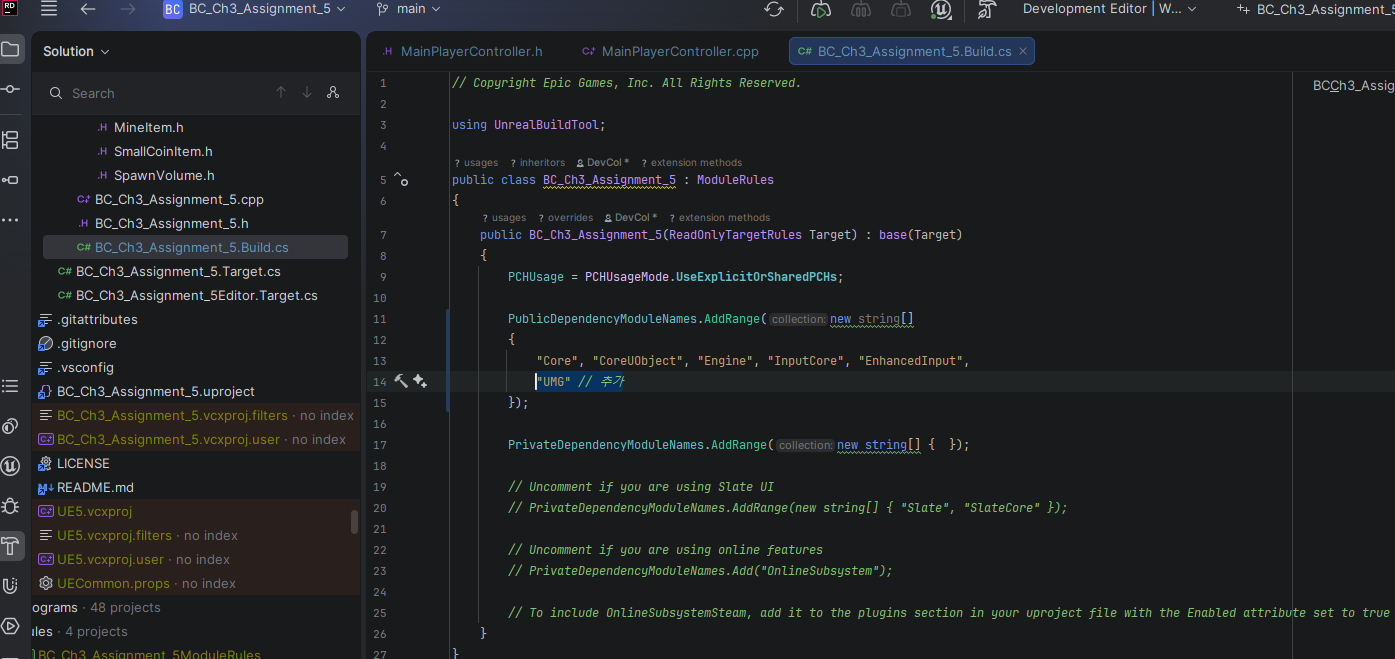
- MainPlayerController.h & .cpp 작성후 꼭!!! Project.Buid.cs 파일 에서 코드를 수정해 줘야 빌드가 됩니다.
MainPlayerController.h
#pragma once

#include "CoreMinimal.h"
#include "GameFramework/PlayerController.h"
#include "MainPlayerController.generated.h"

// Declaration
class UInputMappingContext;  // IMC 관련 전방 선언
class UInputAction;// IA 관련 전방 선언


// Enhanced Input에서 액션 값을 받을 때 사용하는 구조체
struct FInputActionValue;

UCLASS()
class BC_CH3_ASSIGNMENT_5_API AMainPlayerController : public APlayerController
{
	GENERATED_BODY()

public:
	AMainPlayerController();

	// 에디터에서 세팅할 IMC
	UPROPERTY(EditAnywhere, BlueprintReadWrite, Category="Input")
	UInputMappingContext* InputMappingContext;

	// IA
	// IA_Move를 지정할 변수
	UPROPERTY(EditAnywhere, BlueprintReadWrite, Category="Input")
	UInputAction* MoveAction;
	// IA_Jump를 지정할 변수
	UPROPERTY(EditAnywhere, BlueprintReadWrite, Category="Input")
	UInputAction* JumpAction;
	// IA_Look를 지정할 변수
	UPROPERTY(EditAnywhere, BlueprintReadWrite, Category="Input")
	UInputAction* LookAction;
	// IA_Sprint를 지정할 변수
	UPROPERTY(EditAnywhere, BlueprintReadWrite, Category = "Input")
	UInputAction* SprintAction;

	// UMG 위젯 클래스를 에디터에서 할당받을 변수
	UPROPERTY(EditAnywhere, BlueprintReadWrite, Category = "UI")
	TSubclassOf<UUserWidget> HUDWidgetClass;


protected:
	virtual void BeginPlay() override;


};
MainPlayerController.cpp
#include "MainPlayerController.h"
#include "EnhancedInputSubsystems.h"
#include "EnhancedInputSubsystems.h" // Enhanced Input System의 Local Player Subsystem을 사용하기 위해 포함
#include "Blueprint/UserWidget.h"

// 어차피 블루프린트 상에서 전부 다 초기화를 하기 때문에 여기서는 전부 다 nullptr 처리
AMainPlayerController::AMainPlayerController()
	: InputMappingContext(nullptr),
	  MoveAction(nullptr),
	  JumpAction(nullptr),
	  LookAction(nullptr),
	  SprintAction(nullptr)

{
}

void AMainPlayerController::BeginPlay()
{
	Super::BeginPlay();

	// GetLocalPlayer():현재 PlayerController에 연결된 Local Player 객체를 가져옴
	// Local Player 는 그 플레이어의 입력이나 화면 뷰 같은 것을 관리하는 어떤 객체
	if (ULocalPlayer* LocalPlayer = GetLocalPlayer())
	{
		// Local Player에서 EnhancedInputLocalPlayerSubsystem을 획득
		// UEnhancedInputLocalPlayerSubsystem: 입력 시스템을 관리 (IMC 추가 혹은 삭제하는 역할)
		if (UEnhancedInputLocalPlayerSubsystem* Subsystem =
			LocalPlayer->GetSubsystem<UEnhancedInputLocalPlayerSubsystem>())
		{
			if (InputMappingContext)
			{
				// Subsystem을 통해 우리가 할당한 IMC를 활성화
				// 우선순위(Priority)는 0이 가장 높은 우선순위
				Subsystem->AddMappingContext(InputMappingContext, 0);
			}
		}
	}

	// HUD 위젯 생성 및 표시
	if (HUDWidgetClass)
	{
		UUserWidget* HUDWidget = CreateWidget<UUserWidget>(this, HUDWidgetClass);
		if (HUDWidget)
		{
			HUDWidget->AddToViewport();
		}
	}
}
BC_Ch3_Assignment_5.Build.cs
// Copyright Epic Games, Inc. All Rights Reserved.

using UnrealBuildTool;

public class BC_Ch3_Assignment_5 : ModuleRules
{
	public BC_Ch3_Assignment_5(ReadOnlyTargetRules Target) : base(Target)
	{
		PCHUsage = PCHUsageMode.UseExplicitOrSharedPCHs;

		PublicDependencyModuleNames.AddRange(new string[]
		{
			"Core", "CoreUObject", "Engine", "InputCore", "EnhancedInput",
			"UMG" // 추가
		});

		PrivateDependencyModuleNames.AddRange(new string[] {  });

		// Uncomment if you are using Slate UI
		// PrivateDependencyModuleNames.AddRange(new string[] { "Slate", "SlateCore" });

		// Uncomment if you are using online features
		// PrivateDependencyModuleNames.Add("OnlineSubsystem");

		// To include OnlineSubsystemSteam, add it to the plugins section in your uproject file with the Enabled attribute set to true
	}
}
위의 코드를 조금 설명하자면, 현재 프로젝트 내에서 필수적으로 사용하는 엔진 기능들 이라고 보시면 됩니다.
PublicDependencyModuleNames
- Core: 엔진의 기본 기능들
- CoreUObject: 주로 리플렉션 시스템, 가비지 컬렉터
- Engine: 게임엔진의 주요 기능
- InputCore: 입력 시스템
- EnhancedInput: Enhanced Input System
- UMG:Widget Blue Print 관련 모델 (HUD 포함)
빌드 후, 이전에 만들어 두었던 BP_MainPlayerController에 보시면 UI->HUDWidget Class 가 생성되었습니다.
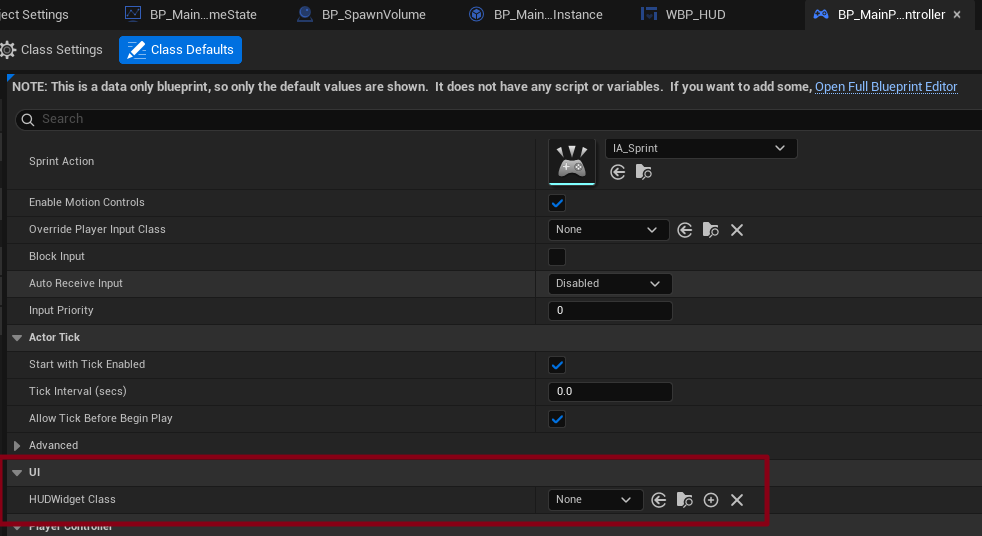
방금 만든 WBP_HUD 를 지정해 줍니다.

Play Mode 와 Play Setting 에 있는 Advanced Setting 으로 가셔서
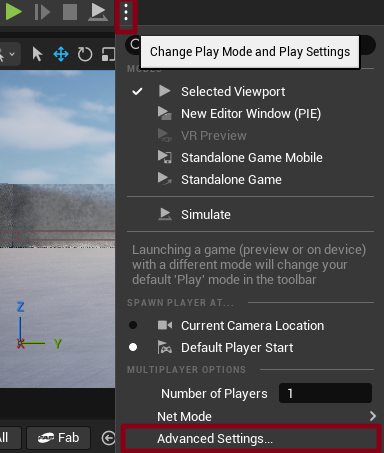
뷰표트 세팅을 아까와 동일하게 1920 X 1080으로 변경해 줍니다.

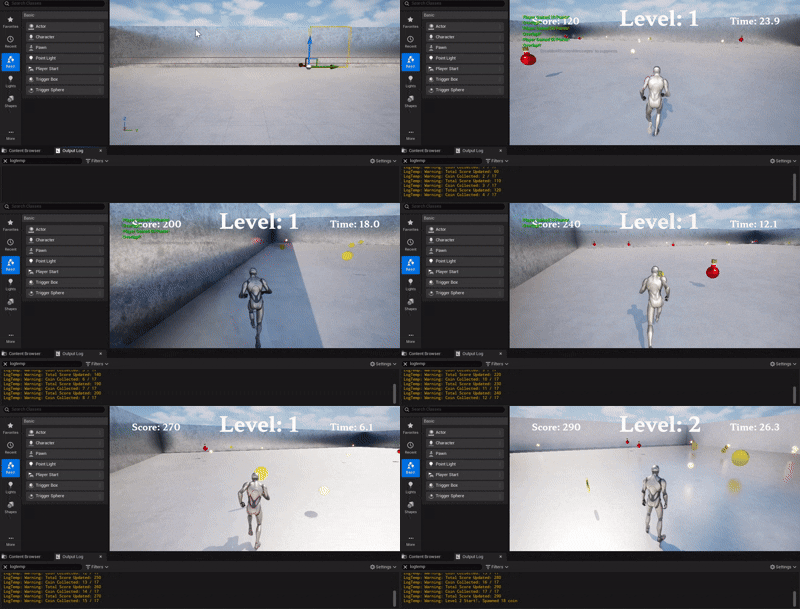
이제 플레이해보면 UI 가 적용된 모습이 보입니다.
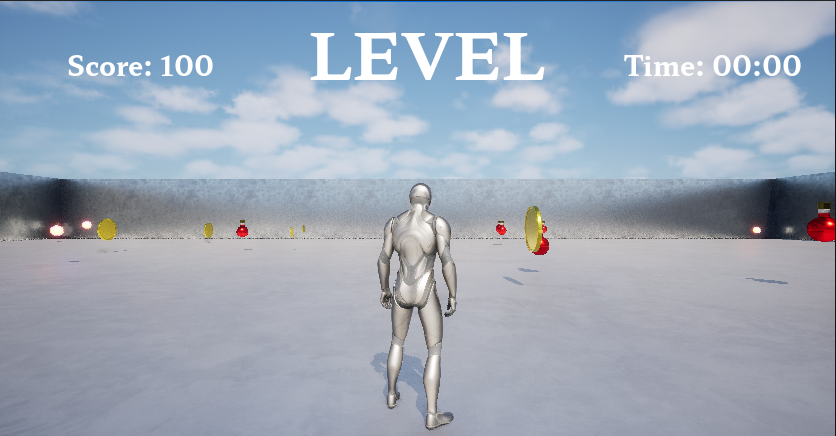
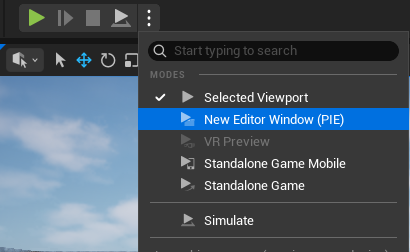
혹시라도 UI 가 이상하다면 New Editor Window (PIE) 로 플레이해 보세요.
HUD 위젯과 GameState 데이터 연동하기
데이터 바인딩 vs SetText 방식으로 위젯 갱신하기
1️⃣ GameState에서 점수 데이터 바인딩하기
- Text Block 선택 & Bind 버튼 클릭
- 언리얼 에디터의 WBP_HUD (Widget Blueprint)를 엽니다.
- Designer 탭에서 점수를 표시할 Score를 표시할 Text Block을 하나 선택합니다.
- 오른쪽 Details 패널에서 Text 속성을 찾습니다.
- Text 항목 오른쪽에 있는 Bind 버튼을 클릭 → Create Binding을 선택합니다.
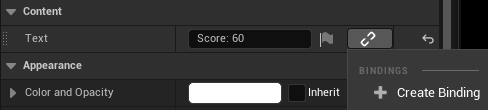
- 자동 생성된 함수 확인
- Binding 버튼을 클릭하면, Graph 탭 또는 이벤트 그래프에 새 블루프린트 함수가 자동 생성됩니다.
- 함수 이름은 보통 “GetText” 같은 식으로 자동으로 정해지는데, 우리는 왼쪽에 Functions 목록에서 함수를 클릭하고 F2를 눌러서 GetScore로 이름을 변경하도록 합시다.
- GameState에서 Score 읽어오기
- 새로 생성된 바인딩 함수 안에서 GameState를 가져와야 합니다. 블루프린트에서는 아래와 같은 순서로 작업합니다.
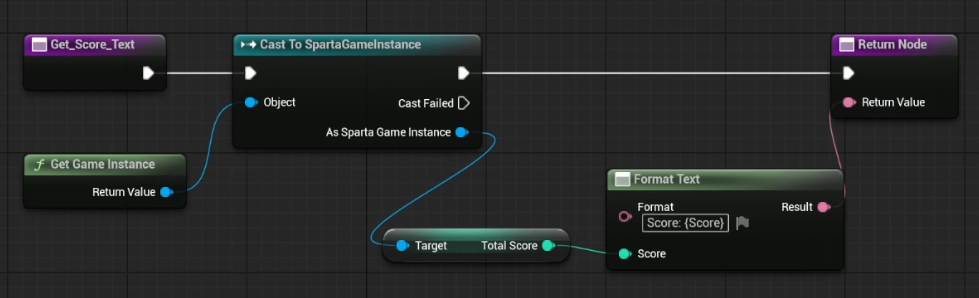
- 마지막에 가져온 Score를 Format Text를 통해 표시를 만들어준 후 이 문자열을 Return Node로 반환하면, Text Block에 해당 문자열이 표시됩니다.
장점: 초급자에게는 Binding 방식이 코드를 많이 작성하지 않아도 되므로 더 직관적입니다.
단점: UI 복잡해지면 SetText 에 비해서 성능면에서 떨어지게 됩니다.
2️⃣ SetText 방식으로 위젯 갱신하기
- MainGameState 에서 주요 변수들을 관리하고 있기 때문에 여기에서 위젯을 갱신하도록 구현하겠습니다.
- Input을 입력받고 관리하는 쪽은 PlayerController 쪽에서 합니다.
#pragma once

#include "CoreMinimal.h"
#include "GameFramework/GameState.h"
#include "MainGameState.generated.h"


UCLASS()
class BC_CH3_ASSIGNMENT_5_API AMainGameState : public AGameState
{
	GENERATED_BODY()

public:
	AMainGameState();

	virtual void BeginPlay() override;

	// === Variables ===
	// 전역 점수를 저장하는 변수
	UPROPERTY(VisibleAnywhere, BlueprintReadWrite, Category="Score")
	int32 Score;

	// 현재 레벨에서 스폰된 코인 개수
	UPROPERTY(VisibleAnywhere, BlueprintReadOnly, Category = "Coin")
	int32 SpawnedCoinCount;
	// 플레이어가 수집한 코인 개수
	UPROPERTY(VisibleAnywhere, BlueprintReadOnly, Category = "Coin")
	int32 CollectedCoinCount;
	// 각 레벨이 유지되는 시간 (초 단위)
	UPROPERTY(VisibleAnywhere, BlueprintReadOnly, Category = "Level")
	float LevelDuration;
	// 현재 진행 중인 레벨 인덱스
	UPROPERTY(VisibleAnywhere, BlueprintReadOnly, Category = "Level")
	int32 CurrentLevelIndex;
	// 전체 레벨의 개수
	UPROPERTY(VisibleAnywhere, BlueprintReadOnly, Category = "Level")
	int32 MaxLevels;
	// 실제 레벨 맵 이름 배열. 여기 있는 인덱스를 차례대로 연동
	UPROPERTY(EditAnywhere, BlueprintReadOnly, Category = "Level")
	TArray<FName> LevelMapNames;

	// 매 레벨이 끝나기 전까지 시간이 흐르도록 관리하는 타이머
	FTimerHandle LevelTimerHandle;

	FTimerHandle HUDUpdateTimerHandle;


	// === Func ===
	// 현재 점수를 읽는 함수
	UFUNCTION(BlueprintPure, Category="Score")
	int32 GetScore() const;

	// 점수를 추가해주는 함수
	UFUNCTION(BlueprintCallable, Category="Score")
	void AddScore(int32 Amount);

	UFUNCTION(BlueprintCallable, Category = "Level")
	void OnGameOver();

	// 레벨을 시작할 때, 아이템 스폰 및 타이머 설정
	void StartLevel();
	// 레벨 제한 시간이 만료되었을 때 호출
	void OnLevelTimeUp();
	// 코인을 주웠을 때 호출
	void OnCoinCollected();
	// 레벨을 강제 종료하고 다음 레벨로 이동
	void EndLevel();
	void UpdateHUD();

};
#include "MainGameState.h"
#include "MainGameInstance.h"
#include "MainPlayerController.h"
#include "Kismet/GameplayStatics.h"
#include "SpawnVolume.h"
#include "CoinItem.h"
#include "Components/TextBlock.h"
#include "Blueprint/UserWidget.h"
AMainGameState::AMainGameState()
{
Score = 0;
SpawnedCoinCount = 0;
CollectedCoinCount = 0;
LevelDuration = 30.0f; // 한 레벨당 30초
CurrentLevelIndex = 0;
MaxLevels = 3;
}
void AMainGameState::BeginPlay()
{
Super::BeginPlay();
// 게임 시작 시 첫 레벨부터 진행
StartLevel();
UpdateHUD();
GetWorldTimerManager().SetTimer(
HUDUpdateTimerHandle,
this,
&AMainGameState::UpdateHUD,
0.1f,
true
);
}
int32 AMainGameState::GetScore() const
{
return Score;
}
void AMainGameState::AddScore(int32 Amount)
{
if (UGameInstance* GameInstance = GetGameInstance())
{
UMainGameInstance* MainGameInstance = Cast<UMainGameInstance>(GameInstance);
if (MainGameInstance)
{
MainGameInstance->AddToScore(Amount);
}
}
}
void AMainGameState::StartLevel()
{
if (UGameInstance* GameInstance = GetGameInstance())
{
UMainGameInstance* MainGameInstance = Cast<UMainGameInstance>(GameInstance);
if (MainGameInstance)
{
CurrentLevelIndex = MainGameInstance->CurrentLevelIndex;
}
}
// 레벨 시작 시, 코인 개수 초기화
SpawnedCoinCount = 0;
CollectedCoinCount = 0;
// 현재 맵에 배치된 모든 SpawnVolume을 찾아 아이템 40개를 스폰
TArray<AActor*> FoundVolumes;
UGameplayStatics::GetAllActorsOfClass(GetWorld(), ASpawnVolume::StaticClass(), FoundVolumes);
const int32 ItemToSpawn = 40;
for (int32 i = 0; i < ItemToSpawn; i++)
{
if (FoundVolumes.Num() > 0)
{
ASpawnVolume* SpawnVolume = Cast<ASpawnVolume>(FoundVolumes[0]);
if (SpawnVolume)
{
AActor* SpawnedActor = SpawnVolume->SpawnRandomItem();
// 만약 스폰된 액터가 코인 타입이라면 SpawnedCoinCount 증가
if (SpawnedActor && SpawnedActor->IsA(ACoinItem::StaticClass()))
{
SpawnedCoinCount++;
}
}
}
}
// 30초 후에 OnLevelTimeUp()가 호출되도록 타이머 설정
GetWorldTimerManager().SetTimer(
LevelTimerHandle,
this,
&AMainGameState::OnLevelTimeUp,
LevelDuration,
false
);
UE_LOG(LogTemp, Warning, TEXT("Level %d Start!, Spawned %d coin"),
CurrentLevelIndex + 1,
SpawnedCoinCount);
}
void AMainGameState::OnLevelTimeUp()
{
// 시간이 다 되면 레벨을 종료
EndLevel();
}
void AMainGameState::OnCoinCollected()
{
CollectedCoinCount++;
UE_LOG(LogTemp, Warning, TEXT("Coin Collected: %d / %d"),
CollectedCoinCount,
SpawnedCoinCount)
// 현재 레벨에서 스폰된 코인을 전부 주웠다면 즉시 레벨 종료
if (SpawnedCoinCount > 0 && CollectedCoinCount >= SpawnedCoinCount)
{
EndLevel();
}
}
void AMainGameState::EndLevel()
{
// 타이머 해제
GetWorldTimerManager().ClearTimer(LevelTimerHandle);
// 다음 레벨 인덱스로
//CurrentLevelIndex++;
if (UGameInstance* GameInstance = GetGameInstance())
{
UMainGameInstance* MainGameInstance = Cast<UMainGameInstance>(GameInstance);
if (MainGameInstance)
{
AddScore(Score);
CurrentLevelIndex++;
MainGameInstance->CurrentLevelIndex = CurrentLevelIndex;
}
}
// 모든 레벨을 다 돌았다면 게임 오버 처리
if (CurrentLevelIndex >= MaxLevels)
{
OnGameOver();
return;
}
// 레벨 맵 이름이 있다면 해당 맵 불러오기
if (LevelMapNames.IsValidIndex(CurrentLevelIndex))
{
UGameplayStatics::OpenLevel(GetWorld(), LevelMapNames[CurrentLevelIndex]);
}
else
{
// 맵 이름이 없으면 게임오버
OnGameOver();
}
}
void AMainGameState::OnGameOver()
{
UpdateHUD();
UE_LOG(LogTemp, Warning, TEXT("Game Over!!"));
// 여기서 UI를 띄운다거나, 재시작 기능을 넣을 수도 있음
}
void AMainGameState::UpdateHUD()
{
if (APlayerController* PlayerController = GetWorld()->GetFirstPlayerController())
{
AMainPlayerController* MainPlayerController = Cast<AMainPlayerController>(PlayerController);
{
if (UUserWidget* HUDWidget = MainPlayerController->GetHUDWidget())
{
// requires
// #include "Components/TextBlock.h"
// #include "Blueprint/UserWidget.h"
//추후 변경 방안
// UPROPERTY(meta = (BindWidget))
// class UButton* MyAwesomeButton;
if (UTextBlock* TimeText = Cast<UTextBlock>(HUDWidget->GetWidgetFromName(TEXT("Time"))))
{
float RemainingTime = GetWorldTimerManager().GetTimerRemaining(LevelTimerHandle);
TimeText->SetText(FText::FromString(FString::Printf(TEXT("Time: %.1f"), RemainingTime)));
}
//
if (UTextBlock* ScoreText = Cast<UTextBlock>(HUDWidget->GetWidgetFromName(TEXT("Score"))))
{
if (UGameInstance* GameInstance = GetGameInstance())
{
UMainGameInstance* MainGameInstance = Cast<UMainGameInstance>(GameInstance);
if (MainGameInstance)
{
ScoreText->SetText(FText::FromString(FString::Printf(TEXT("Score: %i"), MainGameInstance->TotalScore)));
}
}
}
if (UTextBlock* LevelIndexText = Cast<UTextBlock>(HUDWidget->GetWidgetFromName(TEXT("Level"))))
{
LevelIndexText->SetText(FText::FromString(FString::Printf(TEXT("Level: %d"), CurrentLevelIndex + 1)));
}
}
}
}
}- 직접 SetText 호출
- 방식은 PlayerController의 Tick 함수(또는 Timer 이벤트)에서 GameState의 Score를 읽어와서, HUD 위젯에 있는 Text Block에 SetText를 호출하는 방식입니다.
- 이 경우에는 Binding을 쓰지 않고, C++ 혹은 블루프린트 스크립트에서 명시적으로 “점수가 바뀔 때마다 UI Text를 갱신”하도록 로직을 짭니다.
- SetText를 쓰면, 필요할 때만 UI를 업데이트할 수 있어 퍼포먼스에 유리할 수 있습니다.
#pragma once

#include "CoreMinimal.h"
#include "GameFramework/PlayerController.h"
#include "MainPlayerController.generated.h"

// Declaration
class UInputMappingContext;  // IMC 관련 전방 선언
class UInputAction;// IA 관련 전방 선언


// Enhanced Input에서 액션 값을 받을 때 사용하는 구조체
struct FInputActionValue;

UCLASS()
class BC_CH3_ASSIGNMENT_5_API AMainPlayerController : public APlayerController
{
	GENERATED_BODY()

public:
	AMainPlayerController();

	// 에디터에서 세팅할 IMC
	UPROPERTY(EditAnywhere, BlueprintReadWrite, Category="Input")
	UInputMappingContext* InputMappingContext;

	// IA
	// IA_Move를 지정할 변수
	UPROPERTY(EditAnywhere, BlueprintReadWrite, Category="Input")
	UInputAction* MoveAction;
	// IA_Jump를 지정할 변수
	UPROPERTY(EditAnywhere, BlueprintReadWrite, Category="Input")
	UInputAction* JumpAction;
	// IA_Look를 지정할 변수
	UPROPERTY(EditAnywhere, BlueprintReadWrite, Category="Input")
	UInputAction* LookAction;
	// IA_Sprint를 지정할 변수
	UPROPERTY(EditAnywhere, BlueprintReadWrite, Category = "Input")
	UInputAction* SprintAction;

	// UMG 위젯 클래스를 에디터에서 할당받을 변수
	UPROPERTY(EditAnywhere, BlueprintReadWrite, Category = "HUD")
	TSubclassOf<UUserWidget> HUDWidgetClass;
	UPROPERTY(VisibleAnywhere, BlueprintReadOnly, Category = "HUD")
	UUserWidget* HUDWidgetInstance;

	UFUNCTION(BlueprintPure, Category = "HUD")
	UUserWidget* GetHUDWidget() const;

protected:
	virtual void BeginPlay() override;

	/*

	//UPROPERTY(EditAnywhere, BlueprintReadWrite, Category="Input", meta=(AllowPrivateAccess="true"))
	UPROPERTY(EditAnywhere, BlueprintReadWrite, Category = "Input")
	UInputAction* ToggleInventoryAction;

	bool bIsInventoryOpen;

	UFUNCTION(BlueprintCallable)
	void ToggleInventory();

	void ActivateCharacterInput();
	void ActivateUIInput();
	*/

};
#include "MainPlayerController.h"
#include "EnhancedInputSubsystems.h"
#include "EnhancedInputSubsystems.h" // Enhanced Input System의 Local Player Subsystem을 사용하기 위해 포함
#include "MainGameState.h"
#include "Blueprint/UserWidget.h"

// 어차피 블루프린트 상에서 전부 다 초기화를 하기 때문에 여기서는 전부 다 nullptr 처리
AMainPlayerController::AMainPlayerController()
	: InputMappingContext(nullptr),
	  MoveAction(nullptr),
	  JumpAction(nullptr),
	  LookAction(nullptr),
	  SprintAction(nullptr),
	  HUDWidgetClass(nullptr),
	  HUDWidgetInstance(nullptr)

{
}

void AMainPlayerController::BeginPlay()
{
	Super::BeginPlay();

	// GetLocalPlayer():현재 PlayerController에 연결된 Local Player 객체를 가져옴
	// Local Player 는 그 플레이어의 입력이나 화면 뷰 같은 것을 관리하는 어떤 객체
	if (ULocalPlayer* LocalPlayer = GetLocalPlayer())
	{
		// Local Player에서 EnhancedInputLocalPlayerSubsystem을 획득
		// UEnhancedInputLocalPlayerSubsystem: 입력 시스템을 관리 (IMC 추가 혹은 삭제하는 역할)
		if (UEnhancedInputLocalPlayerSubsystem* Subsystem =
			LocalPlayer->GetSubsystem<UEnhancedInputLocalPlayerSubsystem>())
		{
			if (InputMappingContext)
			{
				// Subsystem을 통해 우리가 할당한 IMC를 활성화
				// 우선순위(Priority)는 0이 가장 높은 우선순위
				Subsystem->AddMappingContext(InputMappingContext, 0);
			}
		}
	}

	// HUD 위젯 생성 및 표시
	if (HUDWidgetClass)
	{
		HUDWidgetInstance = CreateWidget<UUserWidget>(this, HUDWidgetClass);
		if (HUDWidgetInstance)
		{
			HUDWidgetInstance->AddToViewport();
		}
	}

	AMainGameState* MainGameState = GetWorld() ? GetWorld()->GetGameState<AMainGameState>() : nullptr;
	if (MainGameState)
	{
		MainGameState->UpdateHUD();
	}
}

UUserWidget* AMainPlayerController::GetHUDWidget() const
{
	return HUDWidgetInstance;
}
추천
유저 인터페이스 및 HUD 관련 UE 공식 문서: https://dev.epicgames.com/documentation/unreal-engine/user-interfaces-and-huds-in-unreal-engine?lang=ko
User Interfaces and HUDs in Unreal Engine | Unreal Engine 5.7 Documentation | Epic Developer Community
Guides and information for artists and programmers creating user interfaces such as menus and HUDs in Unreal Engine
dev.epicgames.com
UMG UI 디자이너 퀵스타트 가이드 UE 공식 문서: https://dev.epicgames.com/documentation/unreal-engine/umg-ui-designer-quick-start-guide-in-unreal-engine?lang=ko
UMG UI Designer Quick Start Guide in Unreal Engine | Unreal Engine 5.7 Documentation | Epic Developer Community
Getting started with using Unreal Motion Graphics in Unreal Engine.
dev.epicgames.com
함렛 폰트: https://github.com/hyper-type/hahmlet
GitHub - hyper-type/hahmlet: Hahmlet font by Minjoo Ham and Mark Frömberg aka Hypertype
Hahmlet font by Minjoo Ham and Mark Frömberg aka Hypertype - hyper-type/hahmlet
github.com
무료 폰트 모음 사이트 눈누: https://noonnu.cc/
눈누
상업적 이용 가능한 한글 폰트를 쉽게 찾아보세요.
noonnu.cc
[Unreal Engine/UE 기초] - 인터페이스 기반 아이템 클래스 설계하기 | [언리얼 엔진 C++ (Unreal Engine C++)]
인터페이스 기반 아이템 클래스 설계하기 | [언리얼 엔진 C++ (Unreal Engine C++)]
인터페이스 기반 아이템 클래스 설계하기 인터페이스 이해하기1️⃣ 인터페이스란?인터페이스 (Interface)란 클래스 (또는 오브젝트)가 반드시 구현해야 할 함수 목록만을 미리 정의해 두고, 실제
devcol.tistory.com
[Unreal Engine/UE 기초] - 충돌 이벤트로 획득되는 아이템 구현하기 | [언리얼 엔진 C++ (Unreal Engine C++)]
충돌 이벤트로 획득되는 아이템 구현하기 | [언리얼 엔진 C++ (Unreal Engine C++)]
충돌 이벤트로 획득되는 아이템 구현하기 이전 포스팅에서는 클래스 구조만 짜고 로직은 비여있던 상태.이전 포스팅: [Unreal Engine/UE 기초] - 인터페이스 기반 아이템 클래스 설계하기 | [언리얼
devcol.tistory.com
[Unreal Engine/UE 기초] - 아이템 스폰 및 레벨 데이터 관리하기 | [언리얼 엔진 C++ (Unreal Engine C++)]
아이템 스폰 및 레벨 데이터 관리하기 | [언리얼 엔진 C++ (Unreal Engine C++)]
아이템 스폰 및 레벨 데이터 관리하기 랜덤 위치에 아이템 스폰하기 1️⃣ 레벨 셋팅하기Resources 폴더에 Maps 폴더에는 3개의 레벨이 이미 존재합니다. 각각 난이도에 따라서 크기가 다른 맵이고,
devcol.tistory.com
[Unreal Engine/UE 기초] - 캐릭터 체력 및 점수 관리 시스템 구현하기 | [언리얼 엔진 C++ (Unreal Engine C++)]
캐릭터 체력 및 점수 관리 시스템 구현하기 | [언리얼 엔진 C++ (Unreal Engine C++)]
캐릭터 체력 및 점수 관리 시스템 구현하기 캐릭터 체력 시스템 구현하기 1️⃣ 캐릭터 클래스에 체력 변수 및 함수 선언PlayerState를 쓰지 않는 이유PlayerState: 각 플레이어마다의 어떤 정보를 관
devcol.tistory.com
[Unreal Engine/UE 기초] - 게임 루프 설계를 통한 게임 흐름 제어하기 | [언리얼 엔진 C++ (Unreal Engine C++)]
게임 루프 설계를 통한 게임 흐름 제어하기 | [언리얼 엔진 C++ (Unreal Engine C++)]
게임 루프 설계를 통한 게임 흐름 제어하기 GameState를 이용한 게임 루프 구현하기 게임루프: 보통 게임의 핵심적인 흐름을 얘기합니다. 즉 게임이 시작할 때부터 종료까지 수행하는 단계들게임
devcol.tistory.com
[페이지] Unreal Engine | 언리얼 엔진